Inside the GeDesPi AI Art Workflow: Prompt to Print
Every AI image that ends up framed on a wall has survived a long line of small decisions. The generation itself is the part everyone sees, and it is usually the quickest step in the whole process. What surrounds it, the drawing that comes before and the file preparation that comes after, is where an image either becomes a piece of art or stays a lucky accident. This is the workflow I use at GeDesPi, from the first rough sketch through to the file that goes to a print partner.
The sketch comes before the prompt
The instinct for anyone new to AI-generated art is to open a generator and start typing. There is nothing wrong with that as a way to brainstorm; AI image generators are genuinely useful for throwing ideas around and analysing new visuals quickly. It is a weaker route to a finished piece, though, because text alone gives the model too much freedom over the things that matter most.
An AI artist whose workflow I follow closely, the one behind the Stelfie character, describes starting every image with a drawing. A scene placing Stelfie in a boxing match with Muhammad Ali began as a sketch, and Stable Diffusion came afterwards to develop it. That order changes the result completely.
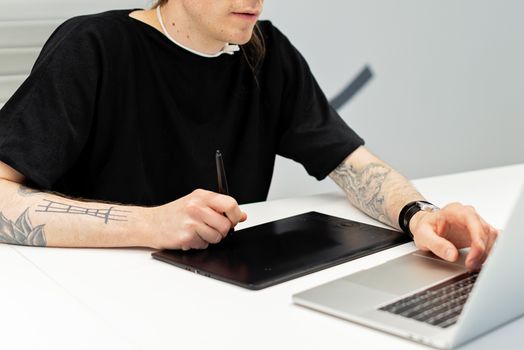
I work the same way. A rough composition in any drawing tool, however crude, fixes the things a prompt cannot reliably control: where the subject sits in the frame, how much space it occupies, which direction the light falls, and where the empty space opens up. Once those decisions are made, the model has a shape to fill rather than a shape to invent.
Passing the sketch through ControlNet
The practical bridge between drawing and generation is ControlNet, and more specifically its edge detection. You sketch the composition, run it through edge detection so the tool can read the lines, and then generate with that structure holding the image in place. The lines do not need to be beautiful. They need to be legible to the software.
This step is what stops a generation from quietly rearranging your idea. Without conditioning, a model will often produce something attractive that has almost nothing to do with the layout you pictured. With edge detection, the silhouette, the horizon and the placement of the main shapes survive. Pose control sits in the same family of tools, and it is useful when a figure needs a particular stance or gesture rather than a particular outline.
Writing a prompt that supports the drawing
The prompt still does a great deal of work, but its job changes. Instead of describing the composition, it describes the surface: materials, lighting, era, texture, the language of a lens or a brush. My prompts tend to move in a fixed order so that I can tell what caused a change in the output.
- Subject and action, stated plainly rather than poetically.
- Medium and finish, such as oil on canvas, ink wash or clean vector edges.
- Lighting, including direction and quality.
- Palette, kept short and specific.
- Framing notes that the sketch has not already settled.
Stacking contradictory styles is the most common mistake I see. Two competing aesthetics in one prompt tend to cancel each other out, and the result drifts towards a soft, average look that belongs to no style at all. I keep a note of prompt variants that worked, because the useful information is usually in the difference between two versions rather than in either one alone.
Running a batch and editing it down
One image is never enough. The workflow around AI illustrative art has become elaborate precisely because artists learned that single outputs are unreliable, and that the creative value sits in running a wide batch and then selecting hard. Invoke’s own walkthrough of five workflows for AI images that do not look generic makes the same point from the tooling side: the interesting results come from process, not from a lucky one-off prompt.
I generate far more than I will ever use, gather the outputs into a contact sheet, and mark them down. Most are rejected within a second. A few are kept for a detail rather than the whole image, a hand that finally reads correctly, a background that solves a problem the foreground had. Those fragments get carried into the next round.
Cleaning up away from the generator
Nothing leaves my machine straight out of a generator. The image goes into a raster editor for the unglamorous work: repairing hands and edges, removing stray marks that read as dirt, tidying the transitions between figure and background, and correcting anything the model rendered confidently and wrongly. When I am fusing pixel art with generated imagery, this is also where the palette gets limited by hand so the grid stays honest.
I keep these edits on separate layers and save the working file alongside the flattened master. It is a small habit that pays off weeks later, when a print needs a different crop or a client asks for a variation.
Preparing the file for print
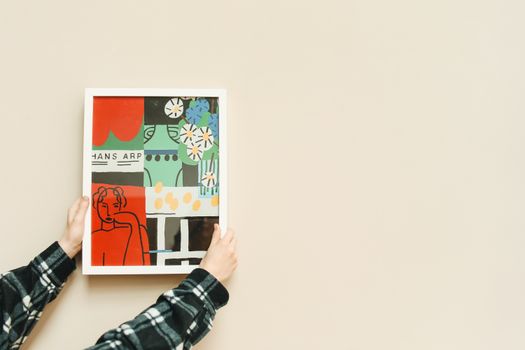
A screen forgives almost everything. Paper does not. Before a file goes anywhere near a print partner, it passes a short checklist, and every item on it exists because something once went wrong.
| Check | Why it matters |
|---|---|
| Aspect ratio matches the print size | Prevents the crop from cutting into the composition during ordering |
| Resolution is adequate at final size | Stops an image that looked crisp on screen from softening on paper |
| Image viewed at full size, not fitted to screen | Reveals artefacts that the zoomed-out view hides |
| Borders and margins considered | Keeps key elements clear of the frame edge |
| Separate master and export copies kept | Protects the original if a later print needs different settings |
Colour is the part I watch most carefully. Screens emit light and paper reflects it, so a rich, glowing midtone on a monitor can flatten once printed. Where a proof is available, I take it. If it is not, I keep the contrast a little higher than looks necessary on screen and accept that the first print is always a form of testing.
Handing over to the print partner
GeDesPi prints are sold through two external platforms, ArtPal and Fine Art America, and both handle production and fulfilment rather than me packing boxes at home. That arrangement puts the file under a brighter light. What gets uploaded is what gets printed, so the export has to be the final version, correctly sized for the format on offer and clean at full resolution. Uploading a working file by mistake is the kind of error that only becomes visible once the box arrives.
Why the workflow matters more than the model
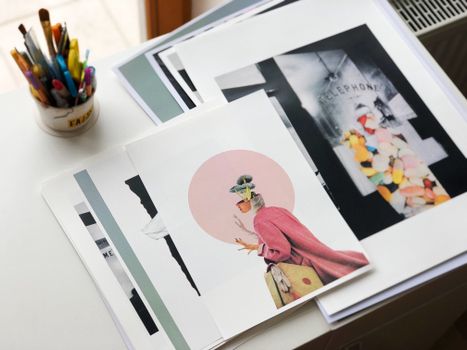
Models change constantly, and a technique that took a week to learn can be absorbed into a default setting. The workflow survives that churn. Sketching first, conditioning the generation, writing prompts that support the drawing, selecting ruthlessly, editing by hand, and checking the file before it prints: none of those steps depend on which generator is fashionable. They depend on the artist deciding what the image is before asking a machine to help make it.
That is the honest answer to why AI art sometimes looks generic and sometimes does not. The tool is the same. The work around it is not.
Frequently Asked Questions
Do I need to be able to draw to use this AI art workflow?
No, but a rough sketch helps enormously. Even a clumsy arrangement of shapes tells the model where things belong, which is more reliable than paragraphs of description. If drawing feels daunting, block out the composition with rectangles and lines in any drawing tool. ControlNet’s edge detection will read that structure just as well as a detailed sketch.
What does ControlNet actually do in an AI art workflow?
ControlNet conditions a generation on something other than text, most commonly the edges of a sketch. It holds the output to the structure you supplied, so the layout, silhouette and placement survive the generation instead of being reinvented. Pose conditioning works along similar lines, guiding the stance and gesture of a figure rather than the outline of the whole scene.
How do I stop my AI images looking generic?
Generic results usually come from single-shot prompting. Generate a wide batch, select hard, edit the keepers by hand and feed details back into the next round. Keep prompts specific and free of contradictory styles. The artists producing distinctive AI work tend to have elaborate workflows, not better one-line prompts, and the difference shows in the final image.
Can AI-generated artwork be printed to a decent standard?
Yes, provided the file is prepared properly. Check that the aspect ratio matches the print size, that resolution holds up at final dimensions, and that the image looks clean at full size rather than fitted to the screen. Colour shifts between screen and paper are normal, so order a proof where one is offered before committing to a large format.
Where can I buy GeDesPi prints?
Original AI-generated and pixel-art pieces are available through two external galleries, ArtPal and Fine Art America, both linked from this site. Those platforms manage production and shipping directly, so browse the listings there for the formats and options currently offered, and check the individual product pages for the details that apply to each piece.